A request from your website is the most valuable lead you get. The person found the company on their own, read the page and left a phone number. And these are exactly the requests that get lost most often: the form sends an email to a shared inbox, whoever opens the mail first reads it, and a week later nobody remembers whether the client was called back.
In Bitrix24 this is solved with CRM forms: a request immediately becomes a CRM record with an owner, a source and a history. Let's look at how to connect a form to your site, what to configure so requests are neither lost nor duplicated, how to keep the ad source, and which of these features are available on bitrix24.kz plans.
Where website requests get lost
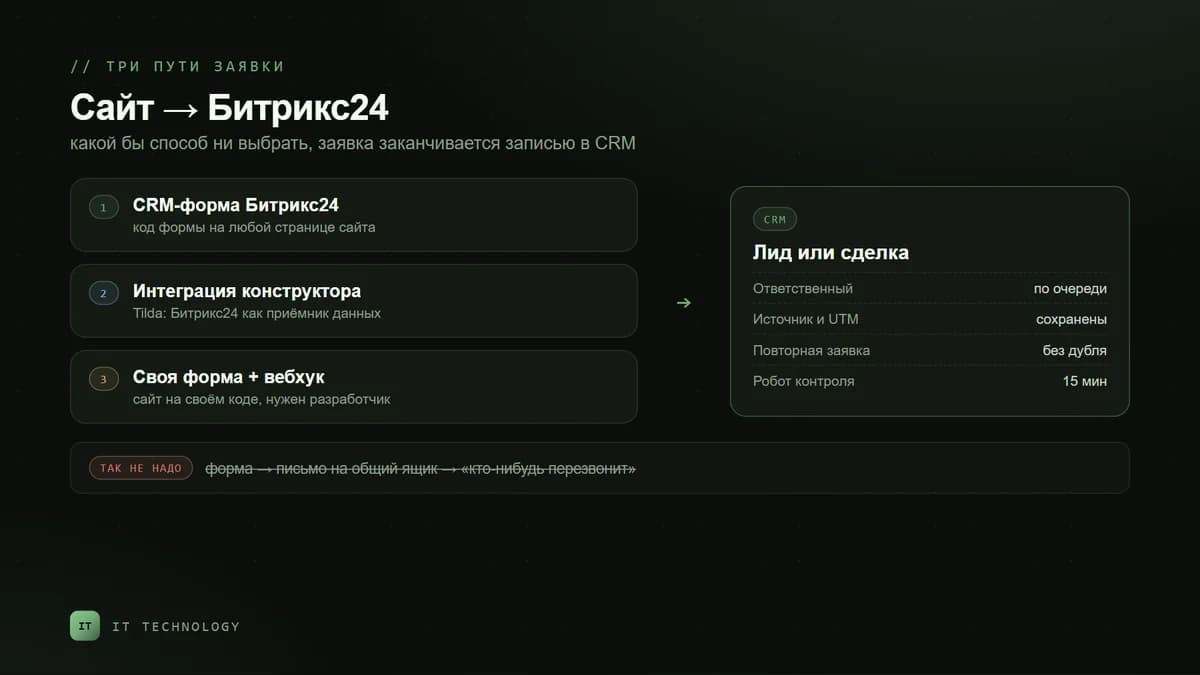
- An email instead of a CRM record. The website form sends an email to a shared inbox — not everyone reads it, and an email forwarded to a manager is not tracked anywhere.
- No responsible person. The request reaches the CRM, but it is assigned to an administrator or a shared user and never shows up in a manager's to-do list.
- Duplicates. The client submitted the form twice or is already in the database — a second record appears and two managers call the same person.
- Lost source. The deal exists, but nobody knows which ad brought the client, so the budget is allocated blindly.
- Spam. Bots fill in the form, managers get used to closing requests without looking and miss the real ones.
Three ways to connect a website to Bitrix24
The right option depends on what the site is built with and who maintains it. All three have the same goal: the request must land in the CRM, not in an inbox.
| Option | When it fits | What to keep in mind |
|---|---|---|
| Bitrix24 CRM form | Any site where you can paste code: the form is created and edited in the portal itself | The look is set in the form editor; it will not copy a complex site design |
| Website builder integration | Tilda and other builders that list Bitrix24 among their form data receivers | Form fields must be mapped to CRM fields, otherwise part of the data is lost |
| Your own form and a webhook | A custom-coded site where the form has to look like part of the page | You need a developer: error handling, resending and a backup copy of each request |
What to configure in the form itself
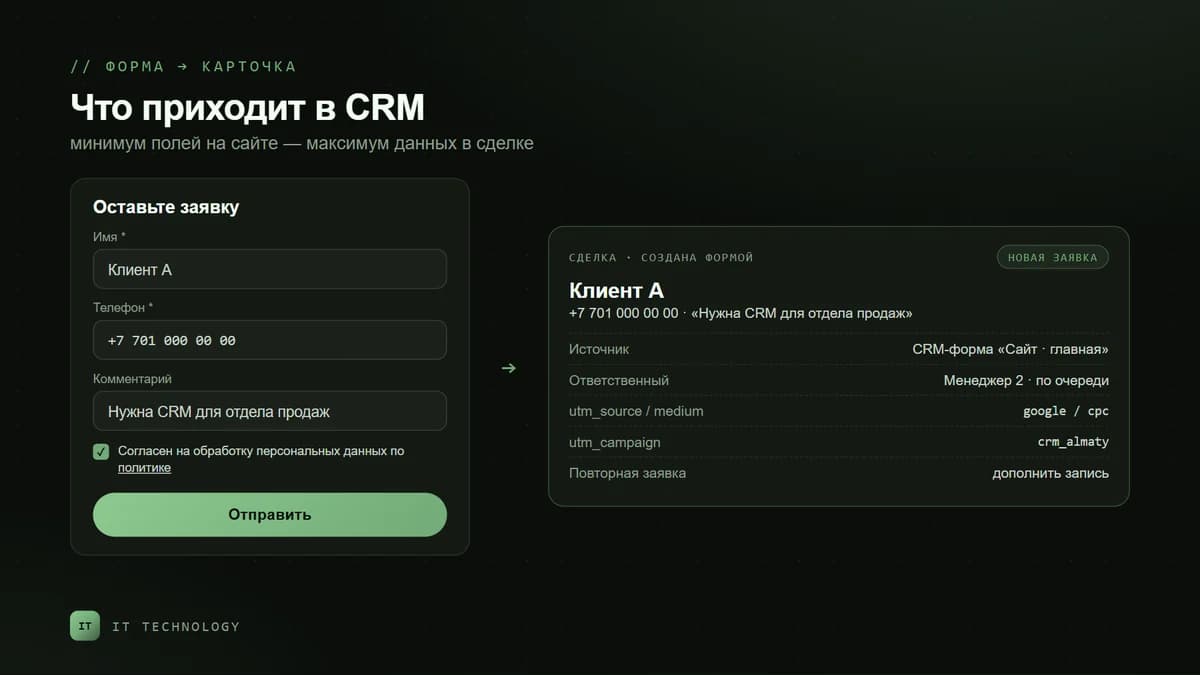
- Minimum fields. Name, phone and a short comment. Every extra required field cuts the number of requests; the manager will ask about the company and details on the call.
- One phone format. A +7 mask and a length check: duplicate search depends on it, as does whether telephony or WhatsApp finds the client's record when they call.
- Consent to personal data processing. Kazakhstan's Law on Personal Data and Their Protection requires the person's consent — the form has an agreement checkbox with a link to your policy for this.
- A rule for repeat requests. Choose what happens if the client is already in the CRM: create a new record, add to the existing one or overwrite its data.
- Several responsible people. List several managers and the form will distribute requests between them in turn instead of piling everything on one person.
- Spam protection. Turn on a captcha if you get more than a couple of bots a week.
- What the client sees after submitting. A short message with a response time (“we will call you back within 15 minutes during business hours”) or a redirect to a thank-you page, which is easy to count as a goal in analytics.
What the form creates: a lead or a deal
That depends on the CRM mode. In classic mode the form creates a lead, which is later converted into a deal. In simple mode without leads the form creates a deal and a contact straight away. If you have not chosen a mode yet, read our breakdown of leads and deals: it determines where a manager will look for a new request.
How not to lose the ad source
If the client came via a link with UTM tags, the CRM form saves them in the lead or deal record. A report is built on them: how many requests and sales each campaign brought. For this, every ad link must carry tags and the form must open on the same page the ad leads to.
Calls and chats are not tagged this way — for them there is the end-to-end analytics widget, available on every bitrix24.kz plan, including Free. We described how to get the full picture across channels in our article on Bitrix24 end-to-end analytics. Requests from Instagram are covered separately.
The first 15 minutes after a request
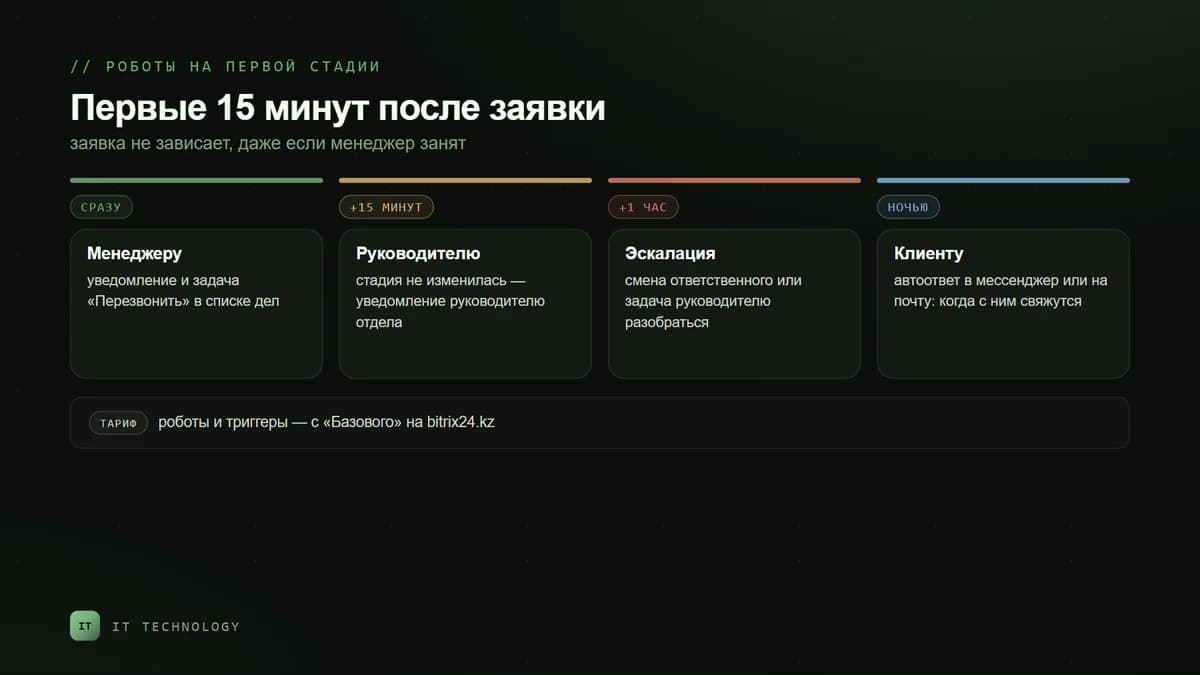
Response speed matters more than the copy on your site: a client who leaves a request often writes to two or three other companies as well. So together with the form, set up robots on the first stage of the pipeline:
- Immediately — a notification to the owner and a “Call back” task, so the request appears in their to-do list.
- After 15 minutes, if the stage has not changed, — a notification to the head of the department.
- After 1 hour with no progress — reassign the request or give the head a task to sort it out.
- Outside business hours — an auto-reply to the client in a messenger or by email saying when they will be contacted.
Robots are available from the Basic plan. We show how to build such chains in our article on business processes and robots, and the stages for incoming requests in our sales pipeline guide.
Callback, live chat and messengers
A form is not the only way to reach you from the site. The Bitrix24 widget combines live chat, callback requests and messengers on one button, and all conversations reach the CRM through Open Channels. Live chat and the widget are available even on the Free plan, callback from Basic. WhatsApp for business is usually connected through Wazzup, so the conversation also lands in the client's record.
What is available on bitrix24.kz plans
| Feature | Free | Basic | Standard | Professional |
|---|---|---|---|---|
| CRM forms | — | yes | yes | yes |
| CRM form templates | — | — | yes | yes |
| Website callback | — | yes | yes | yes |
| Live chat and website widget | yes | yes | yes | yes |
| Open Channels | 1 | 2 | 10 | unlimited |
| Robots and triggers | — | yes | yes | yes |
| Duplicate control wizard | — | — | yes | yes |
| Custom traffic sources in analytics | — | — | — | yes |
Current plan prices are on our Bitrix24 licenses page. A site that collects requests usually manages with Basic; Standard is needed when the number of channels grows and cleaning up duplicates becomes important.
Checks before launch
- Send a test request from a phone and from a computer — a record appears in the CRM and has an owner.
- Send a request via a link with UTM tags — the tags are saved in the record.
- Submit the form a second time with the same phone number — the repeat-request rule fires and there is no second record.
- Check outside business hours — the client gets an auto-reply and in the morning the task is visible to a manager.
- Open the policy link in the consent checkbox — it works and the text is current.
- Delete the test records so they do not end up in reports.
Common mistakes
- Leaving the old “send to email” form on the site next to the new one — some requests will keep bypassing the CRM.
- Making the portal administrator the responsible person — requests pile up with someone who does not sell.
- Making the phone field optional — requests arrive with just a name and there is no number to call.
- Not enabling the repeat-request rule — within a month the database is full of duplicates; we wrote about merging them later in our article on company duplicates.
- Not looking at the source report — the form works, but nobody knows which ads are feeding it.