In B2B, half of all negotiations happen by email: a request for a quote, contract approval, an invoice, a complaint. And all of that correspondence sits in one salesperson’s mailbox. They are on holiday, and nobody answers the client’s email for three days. They leave the company, and the agreements leave with them. The manager finds out about the problem when the client calls.
Bitrix24 connects employees’ work mailboxes and puts emails into the client card next to calls, chats and deals. Let’s look at how to connect mail, what to turn on in the CRM integration, who can see the emails, what to do when an employee leaves and what limits apply on bitrix24.kz plans.
What gets lost when email lives apart from the CRM
- The correspondence belongs to one person. A colleague covering for the salesperson cannot see what was agreed with the client.
- The card has no history. The salesperson calls the client without knowing they wrote to accounting yesterday.
- Emails from new addresses are not counted. A request to the shared address was read and answered, but there is no lead or deal in the CRM, and this client is missing from the reports.
- Nobody sees the response time. An email sat for three days, and the manager learned about it from the client.
- An employee leaves. The mailbox is switched off, and the agreements and attachments disappear with it.
How to connect a mailbox
A mailbox is connected in the Mail section with the “Connect new” button, or straight from a CRM card when writing an email. Gmail, Outlook, Office 365, Exchange, Yandex Mail, Mail.ru, iCloud and corporate mail on the company domain are supported. There are three ways: authorization through the mail service itself, a login with a password or an app password, and connection via IMAP and SMTP.
| Where the mail is | How to connect | What to keep in mind |
|---|---|---|
| Gmail, Outlook, Office 365 | Authorization through the service | The password is not passed to Bitrix24, and access can be revoked in the account settings |
| Yandex Mail | Authorization or an app password | The only service whose subfolders are synchronized |
| Mail.ru | An app password | According to the help center, access is tied to user activity: keep an eye on the last sync time |
| Mail on your own domain (hosting or your own server) | IMAP and SMTP: server addresses, ports, password | Settings come from your administrator or host; SMTP is needed so the client sees your address |
An important detail for corporate mail. If you do not set up sending through an external SMTP server, the client receives the email from an address like noreply@your-account. The reply still reaches the salesperson, but the client sees an unfamiliar address in the From field. Set up SMTP when connecting, and emails will go out from your work address.
CRM integration: what to turn on when connecting
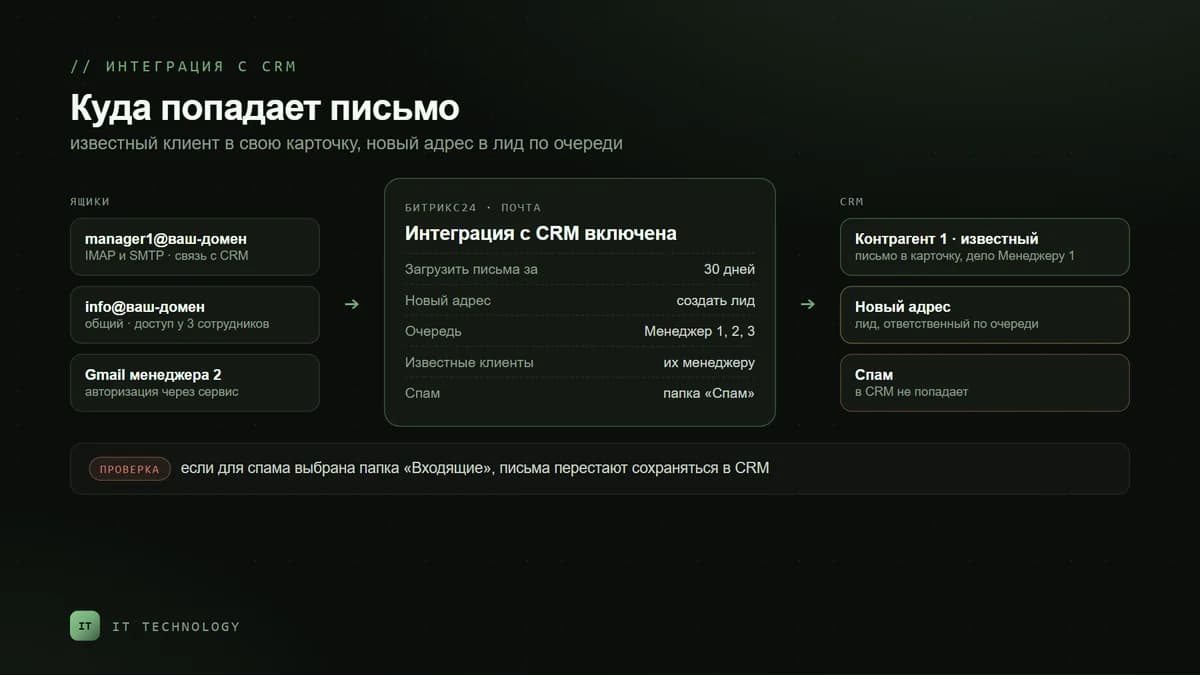
- CRM integration. Without it, mail simply opens in Bitrix24 and the client cards stay empty. With it, incoming emails land in the card and each one creates an activity.
- Import period. Choose how far back to fetch old emails when connecting. The limit depends on the plan: 7, 30 or 90 days.
- What to create for new addresses. From an email sent from an unknown address, the CRM creates a lead or a contact. Choose the same way you choose the CRM mode.
- Responsible queue. Specify the employees among whom new leads and contacts from emails are distributed.
- Emails from known clients. Turn on the option to assign emails from known clients to their responsible employees: an email from a regular client goes to their card and their salesperson instead of creating a new one.
If emails do not reach the CRM automatically, first open the folder sync settings. When the Inbox folder is chosen for spam, incoming emails stop being saved to the CRM. This is the most common reason for the question “why can’t I see the client’s emails in the card”. Website requests are better received through CRM forms than by email: that way a request immediately has a source and a responsible person.
How to work with emails in the card
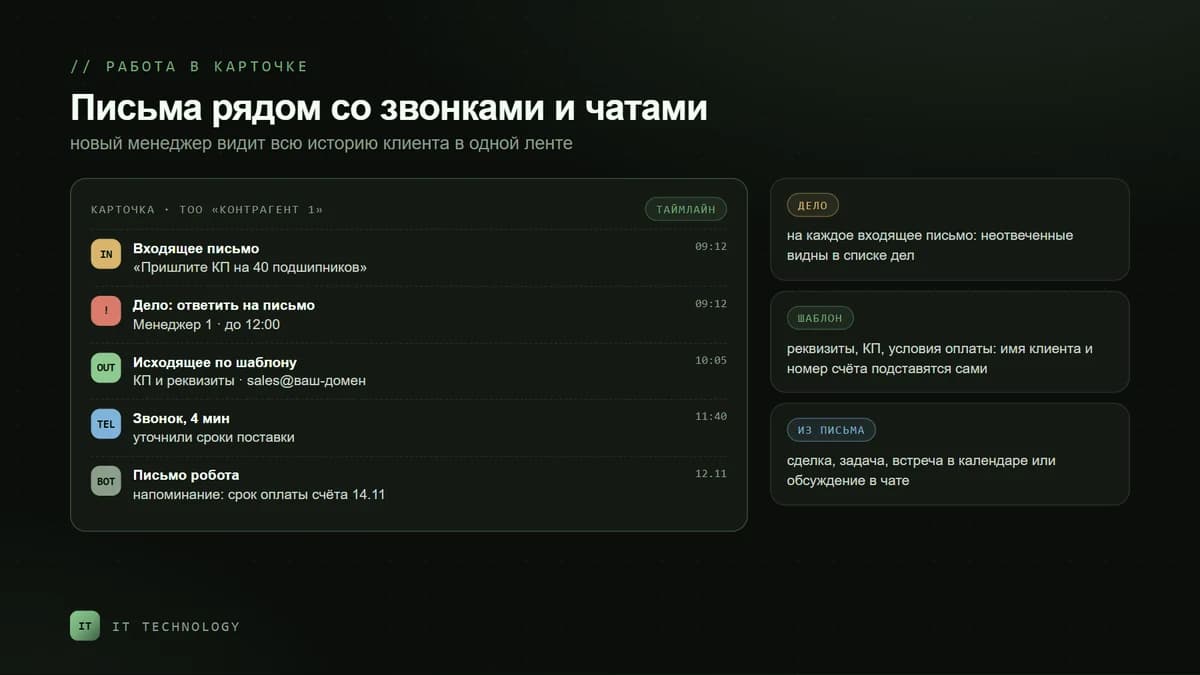
An email is written from the card timeline: “More”, then “Email”. You can reply, forward and attach a file of up to 14.3 MB. Every incoming email creates an activity, so unanswered emails show up in the to-do lists of the salesperson and the manager. For standard emails with company details, quotes or payment terms, create email templates: the client’s name, invoice number and other card fields are inserted into them.
If you reply and forward, the correspondence stays in one card. If you write to several clients with the “Write email” button, each client’s reply comes to their own card. From an email in the mailbox you can create a deal or a task, discuss it with a colleague in a chat or put a meeting in the calendar. Emails sent by automation rules, for example reminders about invoice payment, are also saved in the card.
Who can see the emails
An email in a CRM card is visible to those who have permission to view that card. The mailbox itself is visible to its owner and to the employees they have given access. The account administrator and the manager cannot read someone else’s mailbox unless they have been given access. So connect shared addresses such as info@ or sales@ as a separate mailbox and give access to several employees: on paid plans the number of mailboxes with shared access is unlimited. How to set up permissions for the CRM itself, we covered in the article on protecting your client base.
When a salesperson leaves
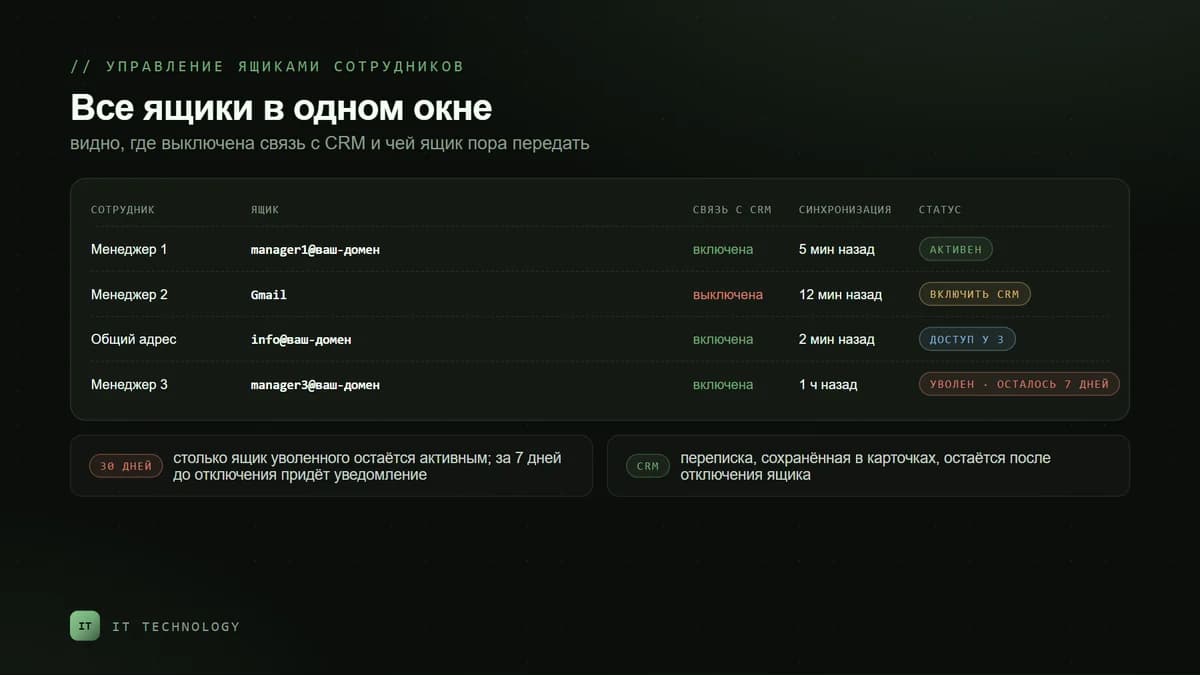
After an employee is dismissed, their mailbox stays active in Bitrix24 for another 30 days: emails keep syncing, and the mailbox can be handed to a colleague in the employee mailbox management section. 7 days before it is switched off, the administrator receives a notification. If the mailbox is not handed over, it is switched off automatically. Correspondence already saved in the CRM does not disappear: copies of emails and attachments are kept in the activities of client cards.
How long emails are kept
Emails in the Mail section are copies from your mail server. Those not linked to the CRM or tasks are removed from Bitrix24 after 7 days on Basic, after 30 on Standard and after 90 on Professional, but they stay on your server. Emails saved in the CRM live in the card’s activities. When you switch to the Free plan, mail sync stops. The conclusion is simple: everything related to a client should be in the CRM.
What is available on bitrix24.kz plans
| Feature | Free | Basic | Standard | Professional |
|---|---|---|---|---|
| Mail and connecting external services | no | yes | yes | yes |
| Mailboxes per employee | no | 1 | 5 | 10 |
| Emails per month from Bitrix24 | no | 10 000 | 50 000 | 100 000 |
| Keeping emails outside the CRM and importing old ones | no | 7 days | 30 days | 90 days |
| Deal, task, meeting from an email | no | yes | yes | yes |
| Managing employee mailboxes | no | no | yes | yes |
| Connecting mailboxes in bulk | no | no | no | yes |
| Role-based permissions in Mail | no | no | no | yes |
Plan prices are on the Bitrix24 licenses page. Basic is enough for a small team if each salesperson has one work mailbox. Standard is needed when an employee has several mailboxes, old emails matter for longer than a week or the manager needs to see all employees’ mailboxes on one screen.
Common mistakes
- Connecting a mailbox without CRM integration: mail opens in Bitrix24, but the client cards are empty.
- Choosing the Inbox folder for spam: emails stop being saved to the CRM automatically.
- Not setting up SMTP for corporate mail: the client sees an unfamiliar account address as the sender.
- Keeping a shared address in one employee’s personal mailbox: during a holiday or after they leave, emails get stuck.
- Not handing over a dismissed employee’s mailbox within 30 days: it is switched off automatically.
- Sorting emails into subfolders in Outlook or Mail.ru: emails in subfolders are not synchronized.