A familiar scene in a sales team: a client asks for an invoice, the manager opens last year’s Word file, copies the BIN and IIC from an email, retypes the items from the deal and picks the number “next after the last one”. A week later the accountant finds an invoice with someone else’s Kbe code, an amount that does not match the deal, and two documents with the same number. The files themselves sit in the manager’s mailbox, and when they are on holiday nobody can find them.
Bitrix24 has a built-in generator for this — CRM Documents. You set up a template once, and from then on an invoice, an act or a quote is assembled from the deal card in a couple of clicks: with both parties’ details, the items, the amount in words, a number, a stamp and a signature. Below: what the Kazakhstan templates contain, how to build your own template, how to set up numbering and robots, what is available on which bitrix24.kz plan, and what the generator does not do.
How it works: a template plus the deal data
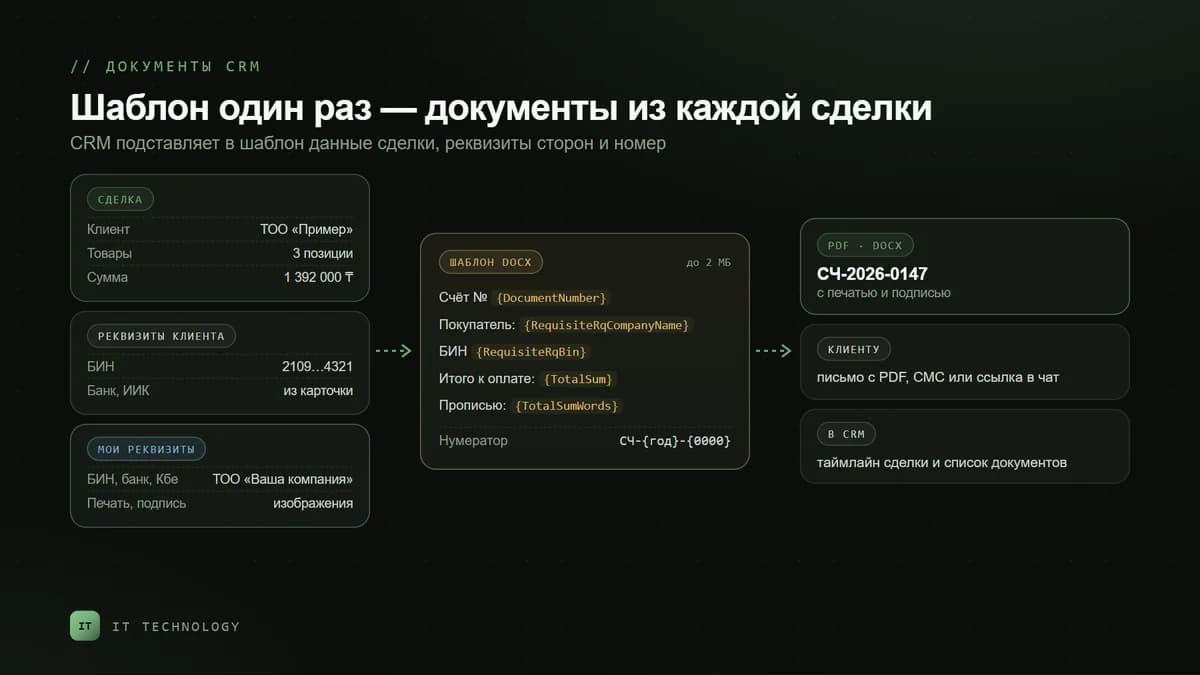
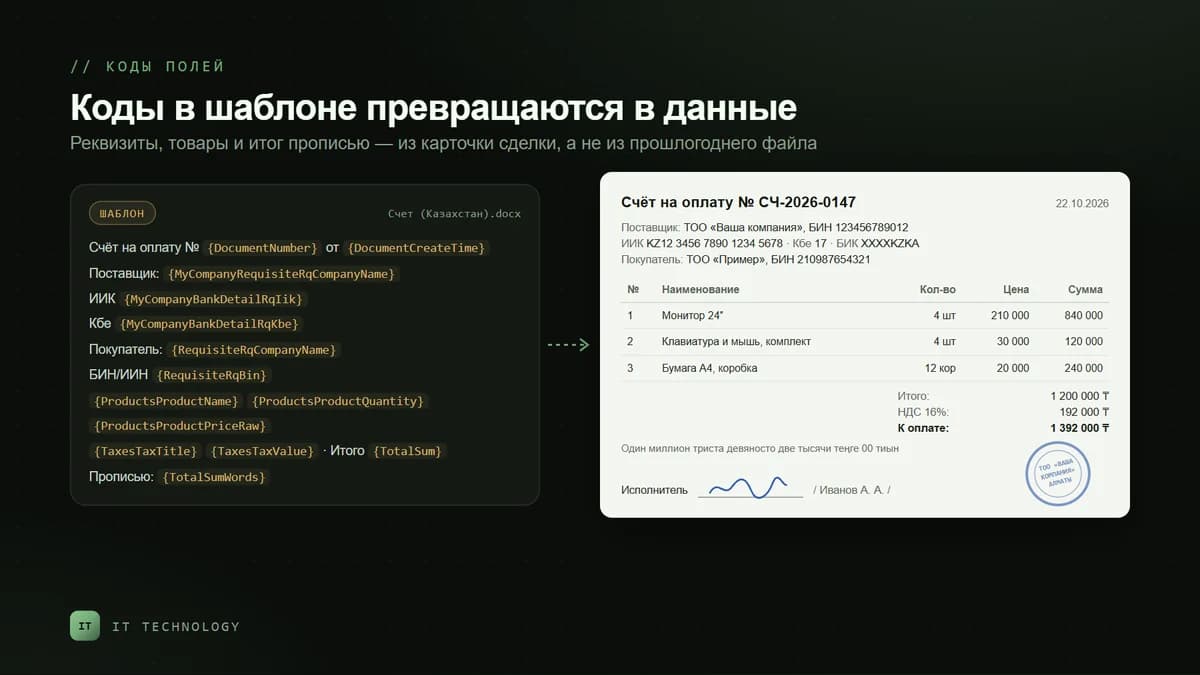
A template is an ordinary Word document with field codes in curly brackets instead of specific data: {MyCompanyRequisiteRqCompanyName} is your company name, {RequisiteRqBin} is the client’s BIN, {TotalSum} is the total due. The manager opens the deal, clicks Document and picks a template — the CRM fills in the data and generates the file. A document can be created from a lead, deal, contact, company, invoice, quote or smart process.
- Your details — from My company details: name, BIN, address, director, chief accountant, the bank with IIC, BIC and Kbe. If you have several legal entities, the document is created for the main one, and in a specific document you can switch the company in the My company field.
- Client details — from the details of the company or contact linked to the deal.
- Items and totals — from the deal’s products: name, quantity, unit, price, amount, tax, total in words.
- Number and date — from the numerator selected in the template settings.
- Stamp and signature — images uploaded to your company details.
The generated document is saved in the deal timeline and in the shared Document → Document list. It can be adjusted with Edit document, downloaded as PDF or DOCX and sent to the client: by email with the PDF attached, by SMS if a provider is connected, or as a link in an open channel chat. If the details are not filled in, the field in the document stays empty, so the setup always starts with the details, not with the template.
Templates for Kazakhstan: what the set includes
Besides the Russian ones, Bitrix24 has templates for other countries. The Kazakhstan set is installed from the deal card: Document → Add new template, then the gear icon → load the default templates → Kazakhstan → install. We went through this set in autumn 2026:
| Template | What is inside | What to fix before launch |
|---|---|---|
| Invoice (Kazakhstan) | An invoice with a sample payment order: beneficiary, BIN, IIC, Kbe, bank and BIC; items, tax, total in words | The “Payment purpose code” line is empty — add your KNP code. Remove the text about customer pickup if you sell services |
| Certificate of acceptance (Kazakhstan) | An act of completed works (services rendered) on form R-1 — appendix 50 to Ministry of Finance order No. 562 | The table lists services; fill in the “Contract” line to match your contract |
| Quote (Kazakhstan) | A quote with the contacts of your company and the responsible manager | Rewrite the greeting and the closing paragraph in your own voice |
| Waybill (Kazakhstan) | A waybill for releasing inventory to a third party, form Z-2 — appendix 26 | The table lists goods; release and receipt are signed by hand |
| Power of attorney (Kazakhstan) | A power of attorney to receive assets, form D-1 — appendix 6 | The recipient’s name and ID are filled in by hand |
| VAT Invoice (Kazakhstan) | A paper VAT invoice | VAT payers issue VAT invoices electronically in the IS ESF — the paper template is usually not needed |
A ready-made template is a draft, not a document for the client. First rename it: the template name becomes the file name, and the client will get an attachment with the country in brackets — Bitrix24 help warns directly that such an email looks like spam. Then create a document from a test deal with real details and read it through the way the client will: empty fields, stray phrases, the VAT rate, the amount in words.
Your own template: a contract and a specification
Every company has its own contract, agreed with its lawyer, so it is almost always built as a custom template. The steps:
- Take the current version in Word and replace specific data with codes: client name — {RequisiteRqCompanyName}, BIN — {RequisiteRqBin}, director — {RequisiteRqDirector}, amount — {TotalSum}, VAT included — {TotalTax}. The full list of codes is in the deal card: Document → Add new template, gear icon → field list.
- Output the items as a table row. If the product codes sit in one row, the CRM repeats it for each item. For a list without a table there is the {PRODUCTS.BLOCK_START} … {PRODUCTS.BLOCK_END} block.
- Contract number, delivery time, payment terms — create them as custom deal fields; they can also be inserted into the template.
- Save as DOCX of up to 2 MB and upload with the Upload button. In the settings, set the name, the CRM section and pipeline the template is linked to, and access — for everyone, for a department or for specific employees.
- Test on three to five real deals — an LLP and a sole proprietor, goods and services, with and without VAT.
A template is linked to a pipeline. If goods and services are sold in different pipelines, each will have its own documents, and the manager will not confuse a supply contract with a services contract. Documents from smart processes — for example from contracts or tenders — are printed the same way; we explained how smart processes work in a separate article.
Document number: the numerator
The number is assigned by a numerator. It is created under CRM → More → Settings → CRM settings → Numerator, or right in the template with the Create button next to the numerator field. The number is built from parts: a prefix, a sequential number, day, month, year, the deal or client ID. For the counter you set the length and a padding character, the step and the period: permanent, within a day, a month or a year.
- Invoices by year: the prefix “INV”, the year and a four-digit number reset once a year — INV-2026-0147.
- Continuous numbering of acts, if that is how your accountants keep the books: the prefix “ACT” and a counter that never resets.
- Several LLPs: the option to use continuous numbering across all your companies is off — each legal entity gets its own numbers.
- Time zone: choose yours. By default the numerator runs on server time, and the yearly reset may not happen at midnight.
If invoices are also issued in 1C, agree whose number is the master. Two counters give the client two different numbers for one invoice and the accountants a mess during reconciliation. Why CRM and 1C figures drift apart and how to fix it is covered in the article on revenue in CRM and 1C.
Stamp and signature
Images of the stamp and the director’s signature are uploaded to your company details and to its card. Then there are two options: switch on the stamp and signature in the “…” menu of a specific document, or tick the with-signature-and-stamp option in the template settings — then they appear in every document from that template. In a custom template their place is marked with the {MyCompanyRequisiteRqStamp} and {MyCompanyRequisiteRqSignature} codes.
Robots: the document appears at the right stage
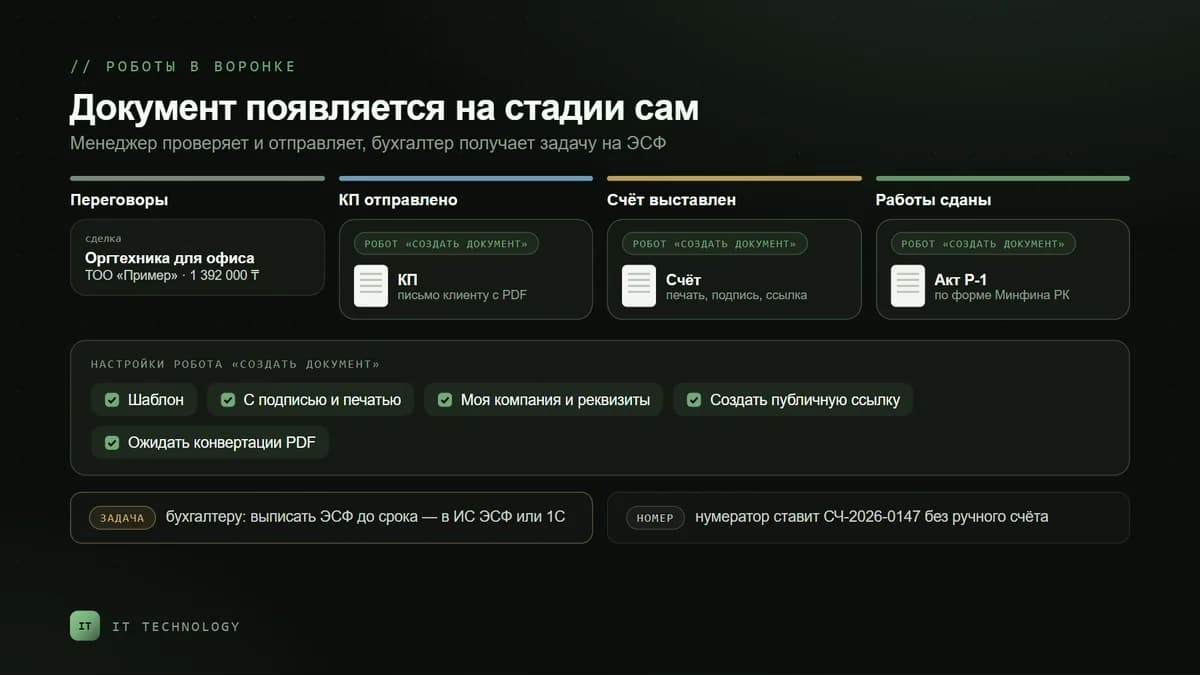
To spare the manager from assembling documents by hand, use the Create document robot from the document group. It is placed on a pipeline stage: the robot creates a document from the selected template, adds the stamp and signature, picks your company and its details, can create a public link and wait for the PDF — then the next robot sends the client a finished file.
- “Quote sent” — the robot creates a quote from the template, and an email with the PDF goes to the client.
- “Invoice issued” — an invoice with stamp and signature, with a link to it sent by email or in the client chat.
- “Work delivered” — an act on form R-1 and a task for the accountant to issue the ESF by a deadline. How to tie the CRM to ESF and 16% VAT is covered in the article on VAT in 2026.
What is available on which bitrix24.kz plan
| Feature | From which plan |
|---|---|
| CRM Documents: ready-made and custom templates, template file up to 2 MB | Basic |
| Access rights to document templates | Basic |
| Invoices and creating an invoice from a deal | Basic |
| Robots and triggers in deals | Basic |
| Quotes as a separate section, converting a quote into a deal and invoice | Standard |
| Recurring invoices | Standard |
| Business processes for complex document approval | Professional |
A quote from a template can be created right from the deal even on Basic. The Quotes section is needed if quotes are tracked as separate objects with their own stages and converted into a deal or invoice. Current prices are on the Bitrix24 licences page.
What the document generator does not do
- It does not issue ESF or SNT. An invoice from the CRM and an electronic VAT invoice are different documents: an ESF is issued in the IS ESF or in 1C and signed with an EDS. The CRM can remind the accountant and keep the ESF number in the deal.
- It does not replace an EDS. The stamp and signature in the PDF are images from the company details.
- It does not track settlements. Payments, debts and reconciliation statements live in 1C, and an integration brings them into the CRM — more on the 1C integration page.
- It does not fix data. The document takes what is written in the card: a wrong BIN in the details means a wrong BIN on every invoice.
The mistakes we see most often
- Client details are not entered. The manager types the BIN and IIC into the document by hand, and the next invoice repeats it all. Details are filled in once in the company card, and if the client has several legal entities — a set of details for each, as described in the article on duplicate companies.
- The VAT rate is typed into the template as text. The phrase “including VAT 12%” will survive any tax reform. Use the tax codes, and the rate will come from the products.
- The amount is changed in the document, not in the deal. Edit document changes only the file: the deal, the reports and the next document keep the old amount.
- One template for everything. Goods and services, with and without VAT, LLPs and sole proprietors — it is easier to keep two or three templates linked to the right pipelines than to explain to managers what to cross out.
- Nobody rechecked the template after the details changed. A new bank or director — create a test document and check it before an invoice goes to a client.
Frequently asked questions
Is the document generator available on the Free plan?
Can Bitrix24 produce an act on form R-1?
Does Bitrix24 issue ESF?
In what form does the client receive the document?
Can documents be issued on behalf of several LLPs?
Can a template be made in Kazakh?
If your invoices and acts are still put together in Word, get in touch. We will fill in the details, build templates for your forms, set up numbering and robots on the stages, and check everything on your real deals. What else the setup includes is on the automation page.