An instruction in WhatsApp, an agreement at a team meeting, “remind me on Friday” — a week later it turns out the task was understood differently, postponed or simply forgotten. Usually the problem is not the people: the instruction has no single assignee, no deadline and no clear result, and the manager only learns about the problem when they ask.
In Bitrix24, every instruction is a card with an assignee, a deadline and a report. The manager sees overdue tasks and the team’s workload without walking around the office, and recurring work is created automatically. Let’s look at how to set tasks so that they get done, which control tools exist and which of them are available on bitrix24.kz plans.
Why instructions don’t get done
- The instruction drowned in a chat. The message scrolled up in the messenger, and it is not on the assignee’s to-do list.
- No deadline. “When you have time” really means “never”: a task without a deadline can never become overdue, and nobody will remember it.
- Several assignees. When three people are responsible, nobody is — each thinks someone else is doing it.
- The result is unclear. The assignee thinks the task is done, the task creator does not, and the conversation starts over.
- Nobody checks. Tasks are closed just to tick a box, because nobody opens them after they are closed.
- Recurring work lives in someone’s head. A monthly reconciliation or report depends on one person’s memory.
How to set a task so that it gets done
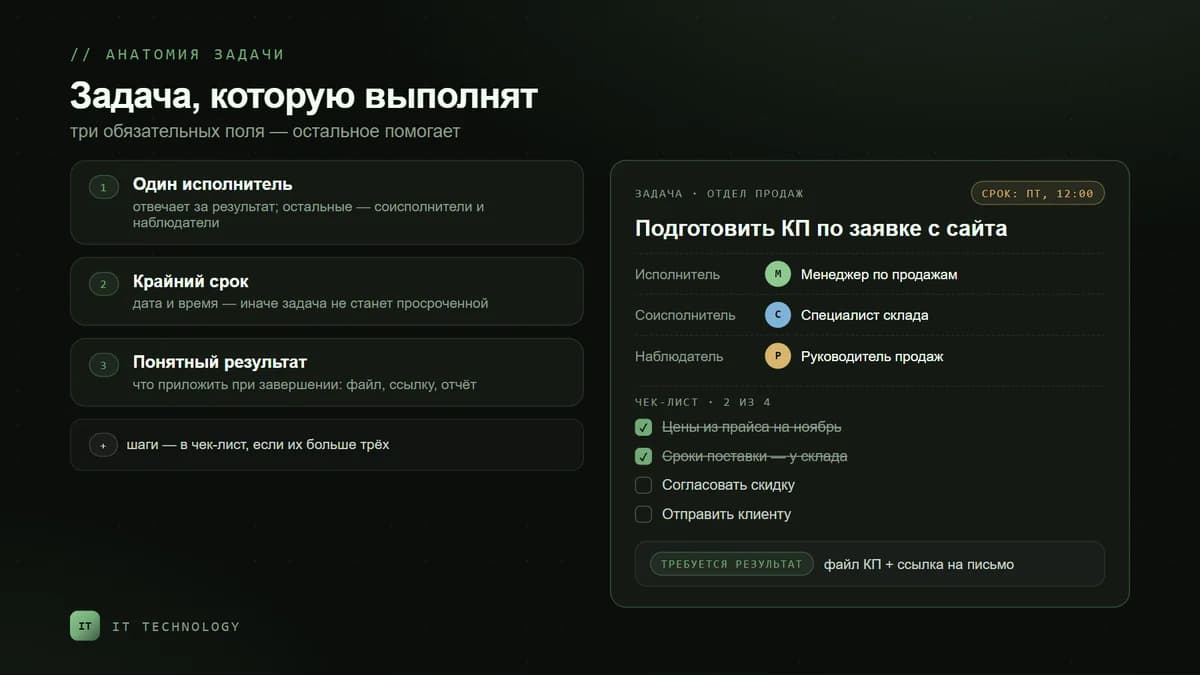
The rule is simple: every task has one assignee, a deadline and a clear result. The other fields help, but these three are mandatory.
| Field | What to write | Example |
|---|---|---|
| Title | A verb and an object — what to do | “Prepare a quote for the website request” |
| Description | Context and what “done” means | “Prices from the November price list, check the delivery time with the warehouse” |
| Assignee | One person who is responsible for the result | Sales manager |
| Participants | People who do their part of the work | Warehouse specialist |
| Observers | People who need to see progress but not do the work | Head of sales |
| Deadline | A date and time, not “urgent” | Friday, 12:00 |
| Checklist | Steps, if there are more than three | Prices → lead times → approval → sending |
| Result | What the assignee attaches on completion | The quote file and a link to the email to the client |
You can create a task not only in the Tasks section but also from a chat message, from a deal or client card in the CRM, or from an email. On bitrix24.kz, task integration with the CRM and email works from Basic, and creating tasks from audio and video messages with AI is available on all plans.
Control without status meetings
A “status update” meeting is needed when there is nowhere to see the status. In Bitrix24 it is replaced by four tools: a required result, review after completion, efficiency and the Supervising section.
Required result
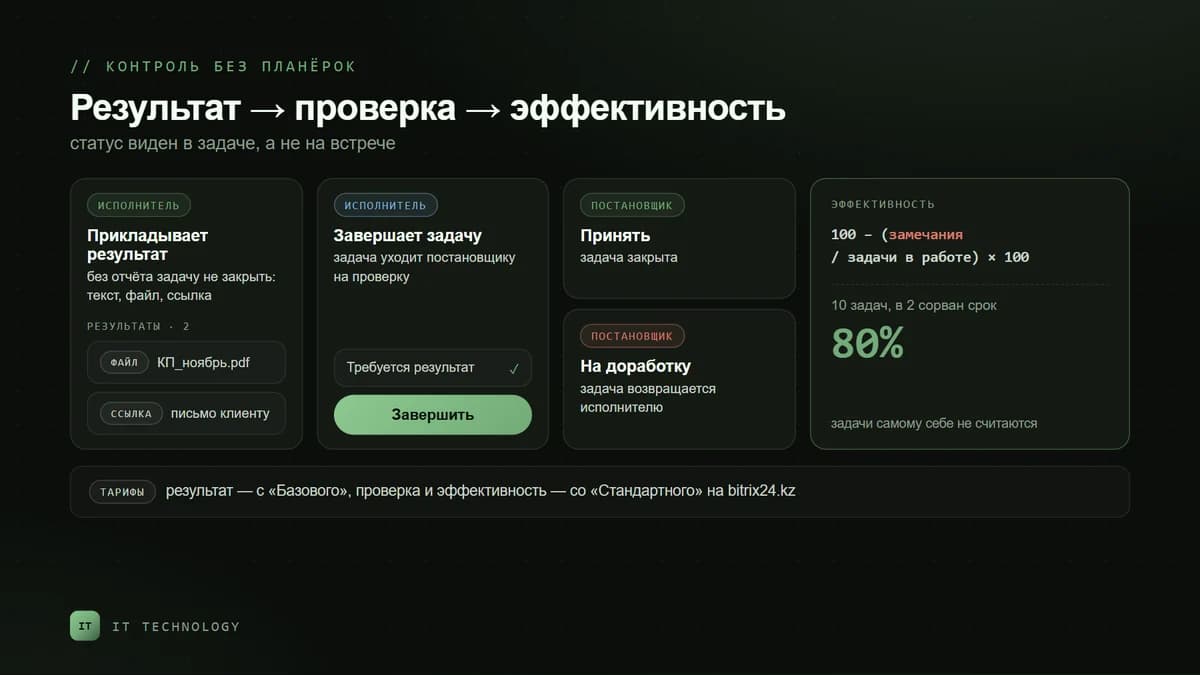
In the task card you can require a result: the assignee cannot close the task until they attach a report — text, a file, a link or a message from the task chat. Such a task can be completed without a report only by the account administrator, the task creator and their manager, and the assignees’ managers. On bitrix24.kz — from Basic.
Review after completion
The “Review task when completed” option sends the task back to its creator: when the assignee completes it, the creator gets a notification and either accepts the work or returns the task for rework. Turn it on where a mistake is costly — contracts, payments, shipments. If you put review on everything, checks will eat the manager’s whole day. On bitrix24.kz — from Standard.
Efficiency
Bitrix24 calculates efficiency from tasks where the employee is the assignee or a participant: efficiency = 100 − (remarks / tasks in progress for the period) × 100. A remark is a missed deadline; if a task was overdue twice, there are two remarks. The example from the help center: 10 tasks in a month, the deadline missed in 2 — efficiency is 80%. Tasks that an employee sets for themselves are not counted, so the score cannot be inflated. On bitrix24.kz — from Standard. How to link the score to bonuses is covered in our article on sales team KPIs.
The Supervising section
This is a summary for all direct reports: how many tasks each person is doing, has assigned, is helping with and is observing, sorted by efficiency. Only people set as heads in the company structure see this section, so fill in the structure first — departments and their heads. According to the bitrix24.kz table, Supervising and task delegation are available from Professional.
Recurring instructions and tasks for a department
Recurring tasks are created automatically on a schedule — every day, on selected weekdays, once a month or once a year — with a start date and an end condition: by date, by number of repetitions or with no limit. For example, on the 25th the accountant gets the task “Reconcile receivables with 1C”, and every Monday the head of sales gets “Check plan completion”. In the recurring task template you can change the assignee or turn the repetition off.
Flows are tasks for a department rather than a specific person. An employee puts a task into the “Accounting” or “Legal” flow and does not have to look for who is free. Tasks are distributed automatically in turn, manually by a responsible person, by employees taking them themselves or by automation rules. A flow has its own efficiency — the share of tasks completed on time; if it drops below the threshold set by the flow’s creator, the funnel turns red. On bitrix24.kz, Flows, recurring tasks, templates with subtasks and automation rules in tasks come with Professional.
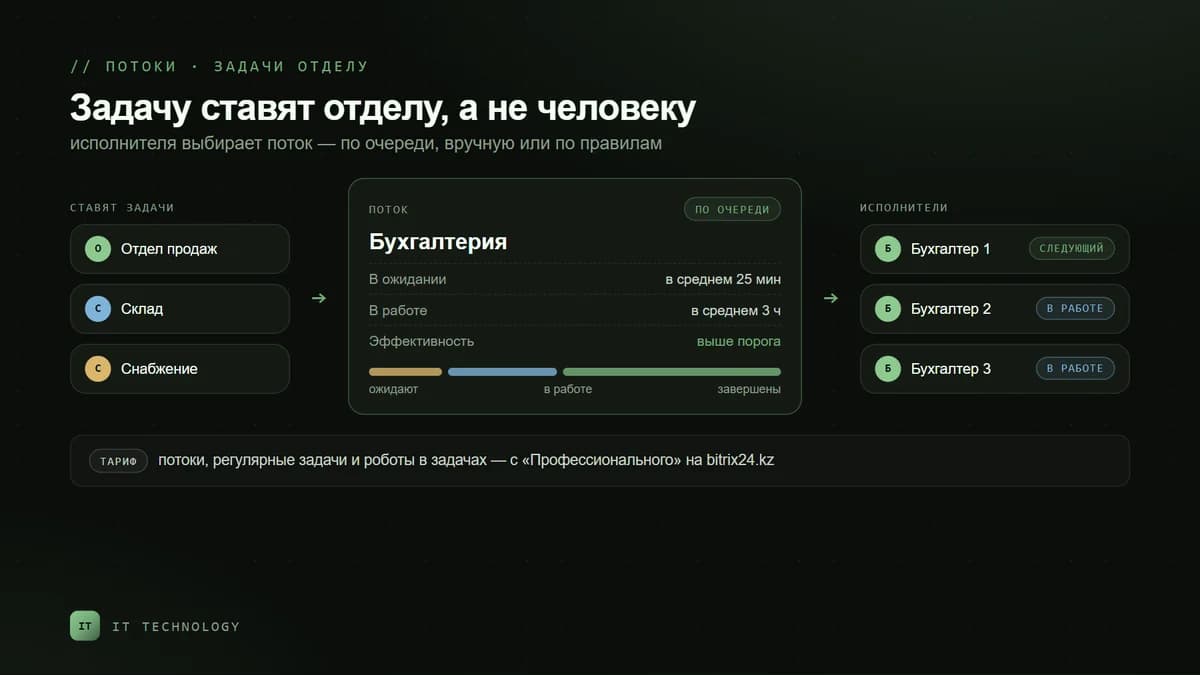
If tasks should appear from CRM events — a new deal, a payment, a shipment — they are created by automation rules and business processes. Ready-made scenarios are collected in our article on Bitrix24 business processes.
What is available on bitrix24.kz plans
| Feature | Free | Basic | Standard | Professional |
|---|---|---|---|---|
| Tasks, subtasks, checklists, reminders | yes | yes | yes | yes |
| Kanban, list, My Plan, deadlines, calendar | yes | yes | yes | yes |
| Observers and participants | — | yes | yes | yes |
| Task result | — | yes | yes | yes |
| Review after completion | — | — | yes | yes |
| Efficiency (for KPIs) | — | — | yes | yes |
| Time tracking in tasks | — | — | manual | yes |
| Recurring tasks and templates with subtasks | — | — | — | yes |
| Supervising and delegation | — | — | — | yes |
| Flows | — | — | — | yes |
| Automation rules in tasks | — | — | — | yes |
Plan prices are on the Bitrix24 licenses page. For deadline discipline in a small team, Standard is usually enough: it has review and efficiency. Professional is needed when the manager wants recurring tasks, the Supervising summary and flows for departments.
Where to start: a plan for the first week
- Fill in the company structure — departments and heads. The Supervising section and managers’ access to their reports’ tasks depend on it.
- Agree on the rules: an instruction exists only if it is a task; a task has one assignee and a deadline; the result is described when the task is set.
- Move recurring work — reports, reconciliations, checks — into recurring tasks.
- Turn on review after completion only for important tasks.
- Replace the status meeting with a look at overdue tasks and efficiency — at the meeting, discuss only what is stuck.
The hardest part is not the setup but the team’s habits. How to get people to work in the system rather than in a messenger, we wrote in the article on how to get your team to use the CRM.
Common mistakes
- Setting tasks without a deadline — they never show up as overdue, and efficiency shows nothing.
- Duplicating the instruction in a messenger — agreements stay in the chat history, not in the task.
- Turning on review after completion for every task — the manager drowns in checks and starts accepting without looking.
- Setting tasks for yourself instead of the assignee — such tasks are not counted in efficiency.
- Not filling in the company structure — the Supervising section is empty, and the manager cannot see the department’s tasks.