
In almost every implementation project the same request comes up sooner or later: “Can the deals just land in a Google Sheet by themselves?” Everyone has their own reason. The director has looked at sales in a spreadsheet for ten years and does not want to open the CRM. Accounting reconciles payments against a list of contracts. The warehouse needs a balance of “available minus sold”. A dealer has to see their own deals without being let into the portal.
The task looks like a single button, yet Bitrix24 offers four ways to do it — from an export in a couple of clicks to your own script that refreshes the sheet every few minutes. They differ not in quality but in the job they do. Below: what each one can do, where it runs out, and eight pitfalls a live export steps on after about a month in use.

One question first: one-off or continuous
Everything else depends on the answer. A one-off export is a file: download, calculate, forget. Live sync is a small system: it has a schedule, access rights, an owner and a way to break. Half of the disappointment comes from solving the second task with a tool built for the first: a manager exports Excel every Friday and pastes rows into a shared file by hand, until one day they paste them one column off.
- How often must the sheet update? Once a month, once a day or within minutes — those are three different solutions.
- Does it have to keep its structure? Tabs, column order, rows with formulas — if the file has been in use for years, nobody will reshape it to suit a tool.
- Who reads it? One executive, the whole department, or people outside the company — both the permissions and the set of fields depend on that.
Option 1. Export from the deal list
A built-in feature with nothing to connect. Open deals in List view, filter what you need — say, won deals for the quarter — set the columns with the gear above the table, then choose Settings → Export to Excel or to CSV. In Google Sheets the file opens through File → Import.
- The file contains what the list contains. Rows follow the filter, columns follow the list settings. The “Export all fields” box also exports what is hidden in the list.
- Products are a separate option, “with product row details”. A deal with three products takes three rows, and the deal amount repeats in each one: a plain column sum will overstate revenue.
- The deal ID is always exported. Do not delete that column — it is what you later reconcile by and find duplicates with.
- You need the export permission. It is set separately for deals, contacts and companies, and that is a good thing: the database cannot be carried off with one button. More in the article on protecting your client base.
- CSV or Excel. CSV is better for moving data to another portal, Excel for analysis.
When it is enough. A one-off analysis, a monthly report for the owner, a reconciliation with accounting, a data transfer. Where it stops. It is a snapshot at the moment of export: an hour later it is out of date, and the only way to refresh it is to repeat everything by hand.
Option 2. BI Builder — when you need a report, not a spreadsheet
Quite often “export it to a spreadsheet” hides a different wish: to see plan versus actual, month-by-month dynamics, sales by manager. A spreadsheet for that still has to be built — pivots, charts, formulas. Bitrix24 has the BI Builder for this: a built-in reporting tool based on Apache Superset that runs inside the portal and does not send data outside.
According to the bitrix24.kz price list it is included from the Standard plan up, data refreshes once an hour, and the limit runs from one million rows per dataset on Standard to ten million on Enterprise. A separate feature is BI Analytics: it feeds portal data to Google Looker Studio, Microsoft Power BI or Yandex DataLens if your reports already live there; it is not available on every plan.
When it is enough. The executive needs metrics, not rows. Where it stops. It is not a spreadsheet: you cannot write a comment next to a deal or add your own column with a formula, and a report will not reproduce the long-standing structure of a familiar file. How to measure advertising in it is covered in the article on end-to-end analytics.
Option 3. Ready-made apps and no-code services
The Bitrix24 Market has apps that export leads and deals to Google Sheets on a schedule or on an event: you configure which fields go to which sheet, and the sheet updates itself. External connector services do the same, letting you assemble a “deal changed → update the row” scenario with the mouse.
- Up and running in an hour or two, with no developer.
- It is a subscription. Connectors also charge by the number of operations: with thousands of deals a month, work out the cost in advance.
- The structure is whatever the app can do. Usually one deal per row, a choice of fields, several sheets for different filters. Not all of them can put product rows into columns or leave the rows with your formulas alone — test it on a copy of the sheet.
- The data passes through a third-party developer’s server. For a client base that is a question to ask before installing, not after.
- Check that you can pay from Kazakhstan and that the app is available in your portal zone.
When it is enough. A simple flat “one deal, one row” sheet read inside the company. Where it stops. Any non-standard layout and any requirements about where the data is stored.
Option 4. A webhook and your own script
The most flexible option and the only one that adapts to the sheet instead of bending the sheet to itself. It works simply: an inbound webhook is created in Bitrix24 — a secret address through which portal data can be requested; a small script asks the portal on a schedule for the deals that have changed and writes them to the sheet. The script can live right inside the sheet (Google Apps Script) or on a server — it is one of the typical integrations.
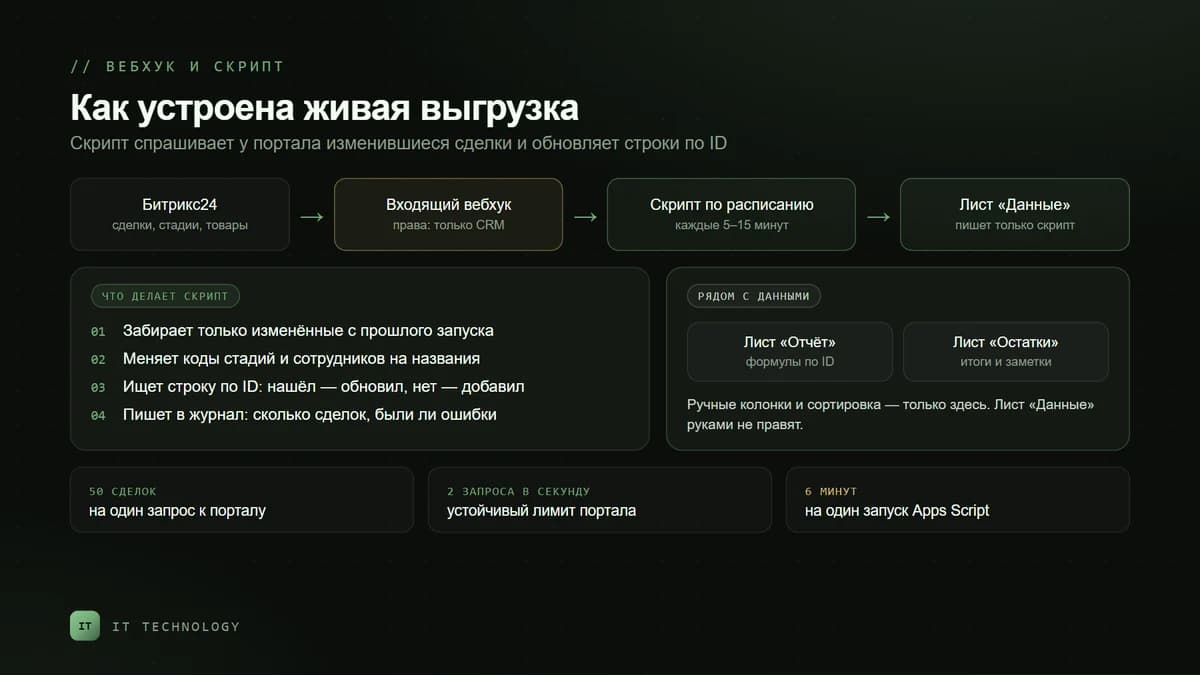
- The webhook. Created under Applications → Developer resources → Ready-made scenarios → Other → Inbound webhook, with CRM permission only. It acts on behalf of the employee who created it and sees exactly what that employee sees.
- Requesting deals. The portal returns deals in pages of 50 records; a filter on the modification date lets you fetch only what has changed since the last run.
- Decoding. Stages, responsible persons and list fields arrive as codes; the script replaces them with names from the portal’s reference lists.
- Writing by ID. The script looks for the row with that deal ID: found — update it, not found — add it. It never appends blindly to the end.
- Schedule and log. A run every few minutes and a separate sheet recording how many deals were processed and whether there were errors.
On volumes. A portal on the regular plans sustains two requests per second and, briefly, up to fifty in a row. A single Google Apps Script run is limited to six minutes, and total scheduled runtime to 90 minutes a day on a free Google account and six hours on Workspace. In practice this means the first full export of 25,000 deals — 500 requests, about four minutes — is possible but only just, and with product rows it no longer fits. So the history is moved once and in batches, and from then on the script fetches only the changes — a matter of seconds. A Google Sheet itself holds up to 20 million cells, but heavy formulas across a whole sheet start slowing down long before that limit.
When you need it. The sheet already has a structure that cannot change: tabs by business line, products in columns, rows with balances and formulas at the top. Where it stops. It is development: it has to be built once and then maintained — changed together with the pipeline and the fields.
The four options in one table
| Export from the list | BI Builder | App or connector | Webhook and script | |
|---|---|---|---|---|
| What you get | An Excel or CSV file | Reports and charts inside the portal | A sheet that updates itself | A sheet in your own structure |
| Updates | By hand | Once an hour | On a schedule or on an event | Every few minutes |
| Setup | Five minutes | From an hour to several days for reports | An hour or two | From two days to a week |
| Sheet structure | Same as the deal list | Not a spreadsheet | Whatever the app can do | Any: tabs, products in columns |
| What you pay for | Nothing | Included from the Standard plan | A subscription, sometimes per operation | Development and maintenance |
| Main risk | Out of date the moment it is exported | Does not replace the familiar file | Data passes through someone else’s server | Depends on who maintains it |
Eight pitfalls of live sync
In the first week any export works. The problems come later, and they are almost always the same ones.
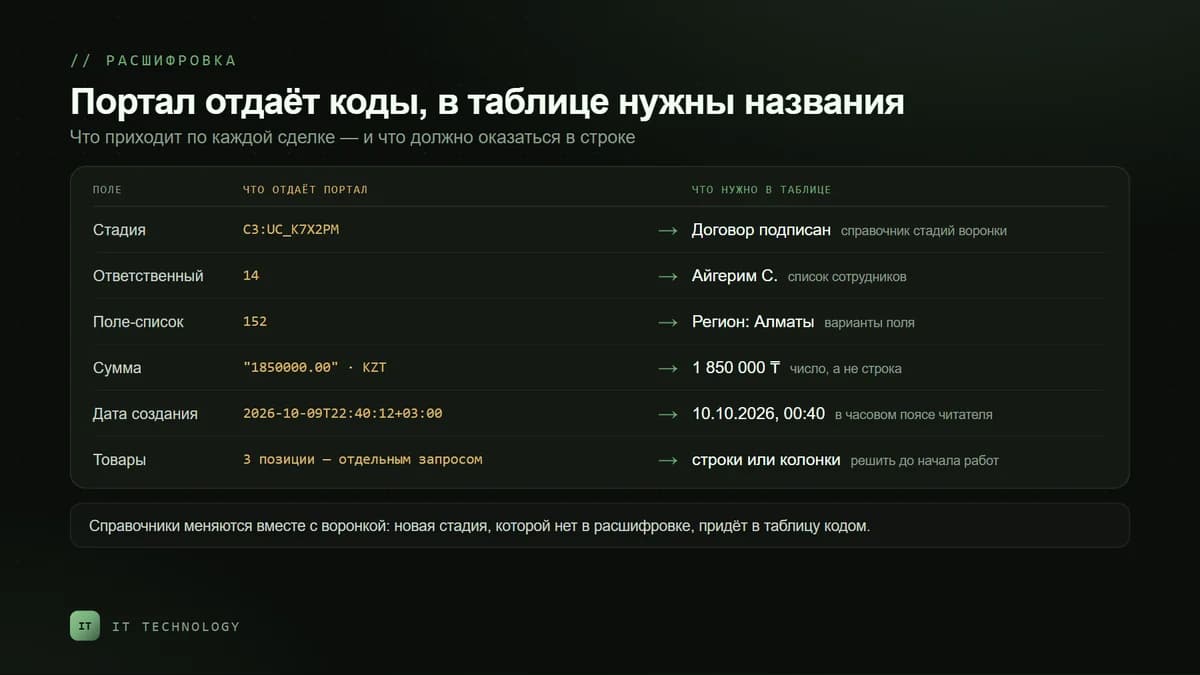
- Codes in the sheet instead of names. A stage arrives as C3:UC_K7X2PM, the responsible person as the number 14, a list-field value as 152. Without decoding the sheet is unreadable, and the reference lists change: add a stage — update the mapping. To fill in employee names the webhook will also need permission to read users.
- Duplicate rows. A script that appends the deal to the end on every change gives you five rows per deal within a week and revenue overstated fivefold. Write by ID only: one deal, one row.
- Deleted deals stay forever. A list request simply does not return what was deleted, and the row will sit in the sheet until someone notices. You need a periodic reconciliation of the ID list or handling of the delete event.
- Lost deals spoil the totals. Decide in advance: remove them from the sheet, colour them, or move them to a separate tab. “Let them all stay” ends with revenue that includes rejections — and an argument about why the numbers do not match.
- Products. A deal may have several, and they are requested separately for each deal. Agree before work starts how they will be laid out: a row per product or columns by product — and what counts as the deal amount.
- Dates slip by a day. Time arrives with a time zone; if you cut it down to a date head-on, deals created around midnight land on the neighbouring day — and the daily report will not match the CRM.
- Manual edits next to the data. Someone added a Comment column and sorted the sheet — the comments stayed put while the deals moved. The export sheet must be written to by the script only; notes, reports and formulas go on neighbouring sheets and reference it by ID. The script must not touch rows with totals.
- The webhook is tied to a person. It works with the rights of the employee who created it: narrow their access or disable the account after they leave — the export thins out or stops, and you find out from an empty sheet. Create the webhook from a technical account and keep a run log.
Security: the sheet is a copy of your database
Exporting deals to a Google Sheet takes part of the client base outside the CRM, where access rights and the event log apply. Three rules worth following.
- Access by list, not by link. “Anyone with the link” means anyone it was forwarded to. Grant access to specific addresses, and give readers View rather than Edit.
- The webhook is a key to the CRM. Whoever has its address can read and change deals within the owner’s rights. Editors of the sheet can see the script bound to it together with the webhook address — so either keep editors to a handful or keep the script separate from the sheet. Leave the webhook owner read-only access to deals in the CRM.
- Only what is needed goes into the sheet. Client phone numbers and addresses are not needed for a payments report. The less personal data leaves the portal, the smaller the consequences if the sheet is shared with the wrong person.
What to choose: a short algorithm
- Needed once a month or less — export from the list. Save the filter so you do not have to rebuild it.
- Need metrics and charts — BI Builder; a spreadsheet is an unnecessary link here.
- Need a live flat sheet for your own people — a Market app, after working out the subscription cost.
- The sheet already exists, has its own structure, and is read by more than just your employees — a webhook and a script.
- You want to edit deals right in the sheet and have them change in the CRM — stop. Two-way sync means edit conflicts and two sources of truth; it is cheaper to teach people to change the stage in the CRM.
A spreadsheet answers the question “what do we have right now”. The CRM answers the question “why did it turn out this way”. Export the first; edit only in the second.
Frequently asked questions
Can I export deals from Bitrix24 to Google Sheets for free?
Which plan does a webhook export work on?
How often can the sheet update?
Can edits in the sheet flow back into the CRM?
What happens to the sheet if we change the pipeline or the fields?
How long does setup take?
If the export was needed yesterday, start with the export from the list — it will cover this month’s report. And while that is being calculated, describe on one page what the sheet should be: columns, tabs, who reads it and how often. With that page in hand, choosing the option takes ten minutes. Need help? Get in touch — we will look at the sheet and the portal and tell you which of the four options is yours.


