If Bitrix24 cloud telephony is too limited or too expensive for you, running your own Asterisk PBX is a viable path. We'll show you how to stand up Asterisk, connect a SIP provider in Kazakhstan, and integrate it with Bitrix24 without losing leads.
When You Need Your Own Asterisk
- More than 500 calls per day - cloud telephony becomes noticeably more expensive than your own server.
- You need non-standard routing: different IVR scenarios for different regions or days of the week.
- You want to store call recordings locally (not on the vendor's servers).
- You have custom integrations - for example, scoring the caller through an external API before connecting them to a sales rep.
- You work with government clients and need compliance with local data storage requirements.
What You Need to Get Started
- Server: 4 CPU / 8 GB RAM / 100 GB SSD. A VPS from any Kazakhstani provider will do (PS, ps.kz, hoster.kz).
- Asterisk 18 LTS or newer.
- FreePBX as the admin panel (optional, but it greatly simplifies configuration).
- A SIP provider with a number in the required area code (+7 727 for Almaty, +7 7172 for Astana, etc.).
- Access to Bitrix24 with permission to install applications from the marketplace.
Step 1. Stand Up Asterisk on the Server
Take Ubuntu 22.04 LTS and install the FreePBX image (with a single command via the installer from sangoma.com). In 20-30 minutes you'll have a working PBX with a web interface.
Configure the firewall right away: open only the necessary ports (5060/UDP for SIP, 10000-20000/UDP for RTP) and close everything else. An Asterisk box without a firewall is a magnet for auto-dialing attacks on international numbers - you could rack up a bill of hundreds of thousands overnight.
Step 2. Connect a SIP Provider
Among proven Kazakhstani providers: Beeline KZ Business (requires a contract with Beeline), Tele2 Business, and Onlinesim (for virtual numbers without an office). Register an account, obtain your SIP login/password and the registrar (sip.beeline.kz or equivalent).
In FreePBX, go to Connectivity > Trunks and create a SIP trunk: enter the provider's details, the outbound prefix (often 8 or 9 to dial out to the city network), and the registration string `register=login:password@sip.provider.kz`. After saving, check the trunk status - it should read "Reg".
Step 3. Set Up Internal Extensions for Sales Reps
Under Extensions, create a 3-digit number for each sales rep (101, 102, 103, etc.). Configure the SIP login/password and bind it to a softphone (Zoiper, MicroSIP) or a hardware IP phone. A rep can work from home - from any softphone using their login/password.
Step 4. Configure the IVR (Voice Menu)
"Hello, you've reached [company]. For sales, press 1; for an existing order, press 2; for general questions, press 3." You can record the message directly from your own phone by dialing *77.
The IVR is a common point of inefficiency: overlong greetings, the wrong options, dead-end branches. Keep it short (under 10 seconds) and route the caller straight to the right department in a single keypress.
Step 5. Connect Asterisk to Bitrix24
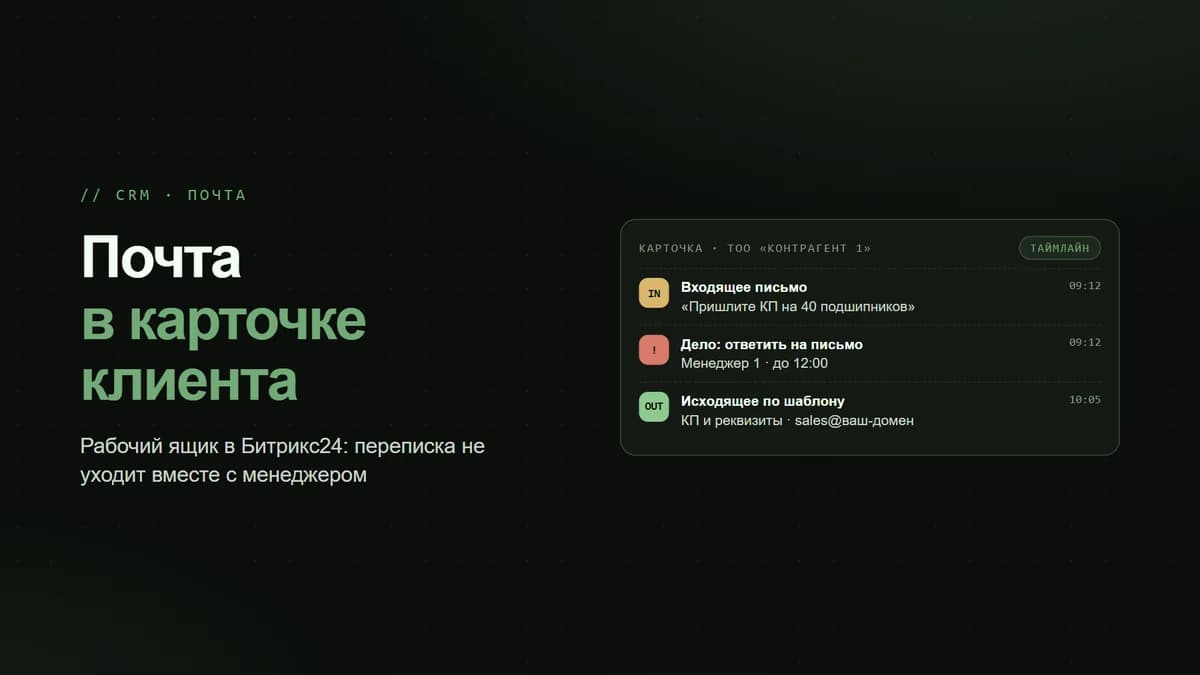
In the Bitrix24 marketplace, find the SIP Connector application (paid; check the current price with the vendor). Install it, and in the settings specify the address of your Asterisk server along with the login/password for the CTI link. Once configured, a "Call" button appears in client records in Bitrix24.
A cheaper alternative is the `pbx_bitrix` module for Asterisk (open source). It requires some tinkering, but it works.
Step 6. Set Up Call Recording
In FreePBX, enable global recording for outbound and inbound calls. Recordings are saved to the server in `/var/spool/asterisk/monitor/`. Through the connector, recordings are automatically attached to the client record in Bitrix24.
Note: under Kazakhstani law, you must notify the client that the call is being recorded. Add a line to the IVR: "This call is being recorded for quality assurance purposes."
What Often Breaks
- No audio during a call - usually an issue with RTP ports and NAT. Resolved by setting `externip` in Asterisk and configuring forwarding rules on the router.
- Calls drop after 30 seconds - this is a NAT timeout; increase `keepalive` on the Asterisk side to 30 seconds.
- The rep answers but the client can't hear them (one-way audio) - again, NAT and RTP ports.
- Strange calls to international numbers start coming through - an attack launched via a hole in your SIP setup. Switch to long passwords and close port 5060 to everyone except the provider.